Filtering and sorting results
:::info Open it in ZonaCNC 👉 Go to listing filters on ZonaCNC → :::
When a listing returns a large number of ads, filters and sorting help you focus on exactly what you are looking for. Use them after a search or when browsing a category to cut through the noise and quickly compare equivalent machines.
Steps
- Run a search or navigate to a category to reach an ad listing.
- Locate the side filters next to the listing.
- Select the criteria that matter to you — for example: price, year, CNC control brand, hours of use, or seller country.
- The listing updates to show only the ads that match your criteria.
- Use the sort option to bring the most relevant results to the top: by relevance, by date, or by price.
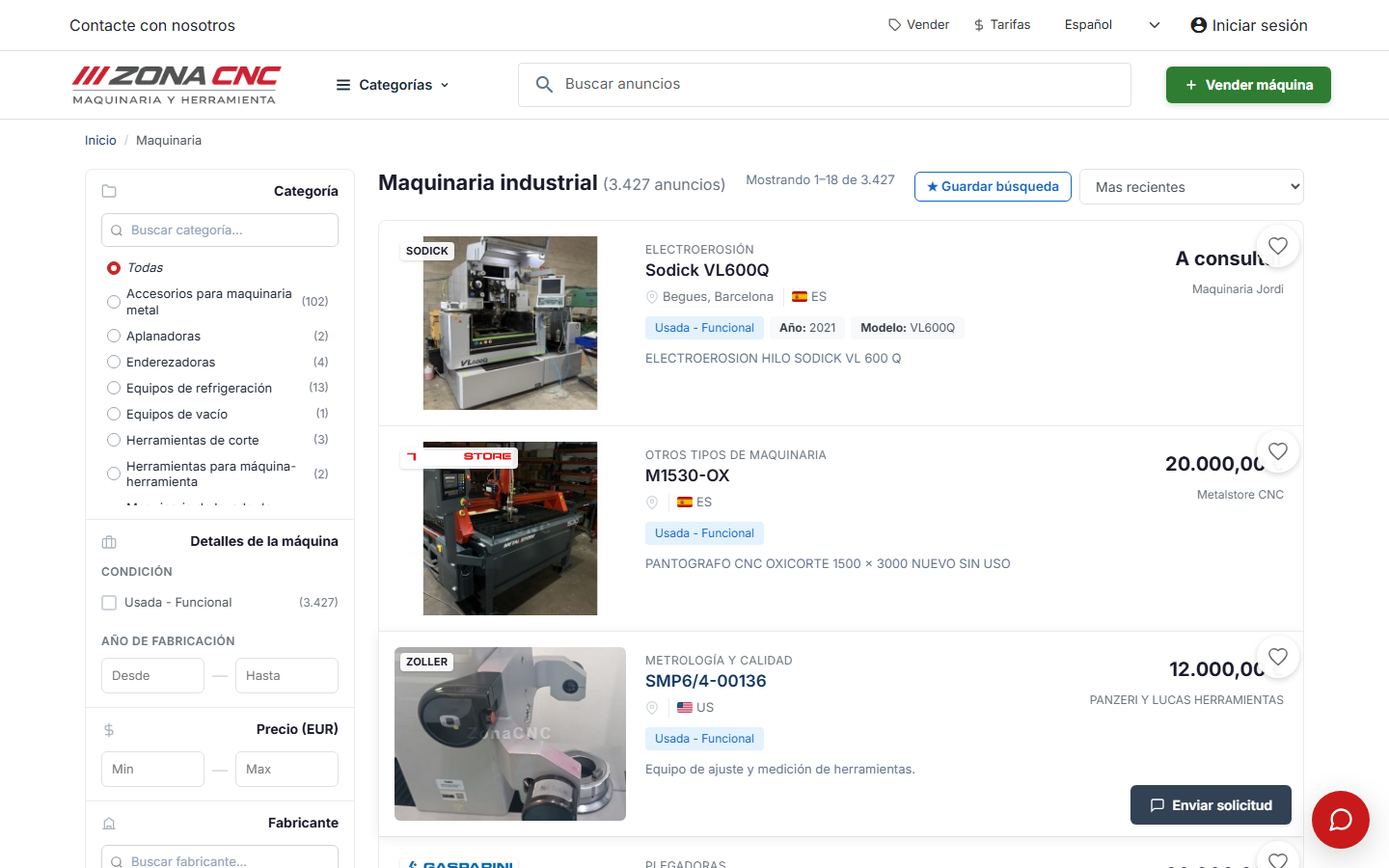
Available filters
The side filters let you narrow down the listing by the criteria most relevant when buying machinery, such as price, year, CNC control brand, hours of use, or seller country, among others. You can combine multiple filters at once to reach a highly targeted selection.
Sorting results
In addition to filtering, you can change the sort order of the ads:
- Relevance: prioritises ads that best match your search query.
- Date: shows the most recent listings first — useful for spotting new arrivals.
- Price: sorts from lowest to highest (or vice versa) so you can compare within your budget.
:::tip Tip Start by filtering on what matters most to you (for example, year or brand) and use price as your final sort criterion. That way you compare equivalent machines and make your decision based on budget. :::
Common mistakes
- Applying too many filters at once: you may end up with no results. If that happens, relax one or more criteria.
- Forgetting to sort: filtering reduces the listing, but sorting is what brings the most interesting ads to the top.
- Confusing filter and search: the search box finds; filters refine what has already been found.